Mobile app user interface
Video chapters
00:00 Introduction 00:10 Installation 00:23 Login 00:38 Permissions (Allowing Location, Camera, and Storage) 01:04 Event List 01:10 Public Events 01:19 Private Events 01:34 Game Details 01:42 Online Game vs. Offline Game 02:20 Profile - Setting Team Name 02:29 Settings 02:34 Outro
Listing of events
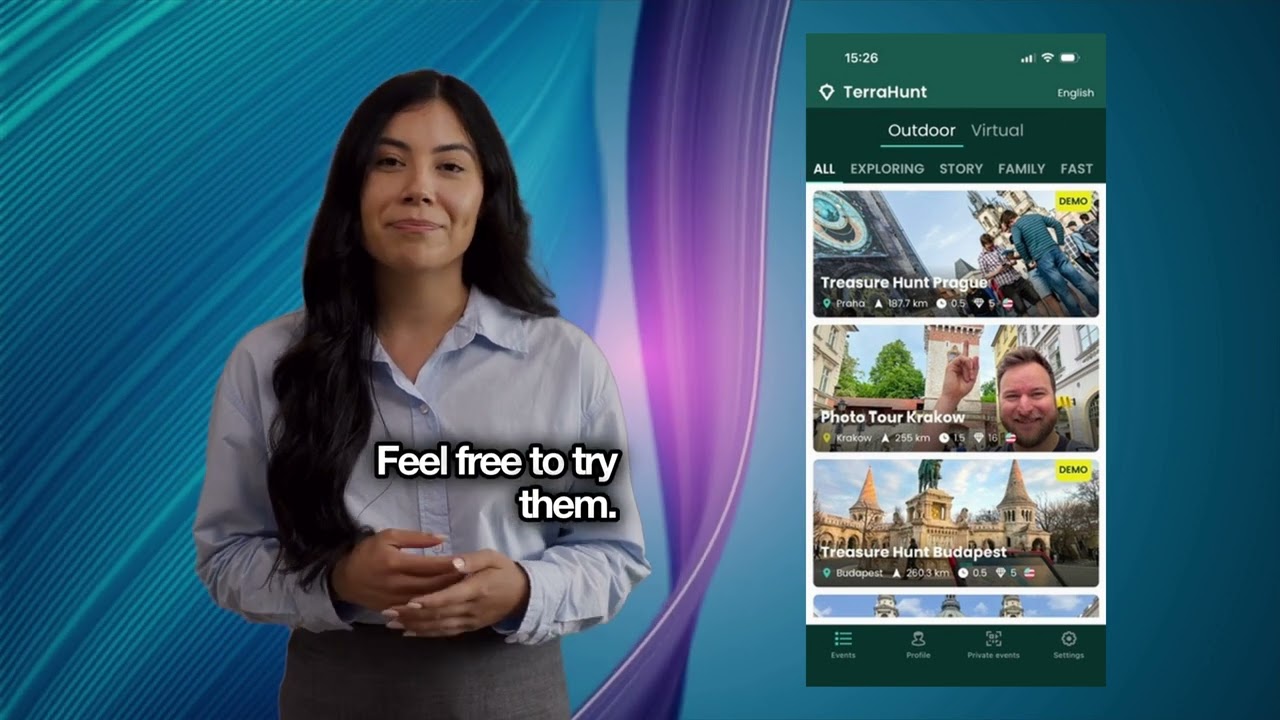
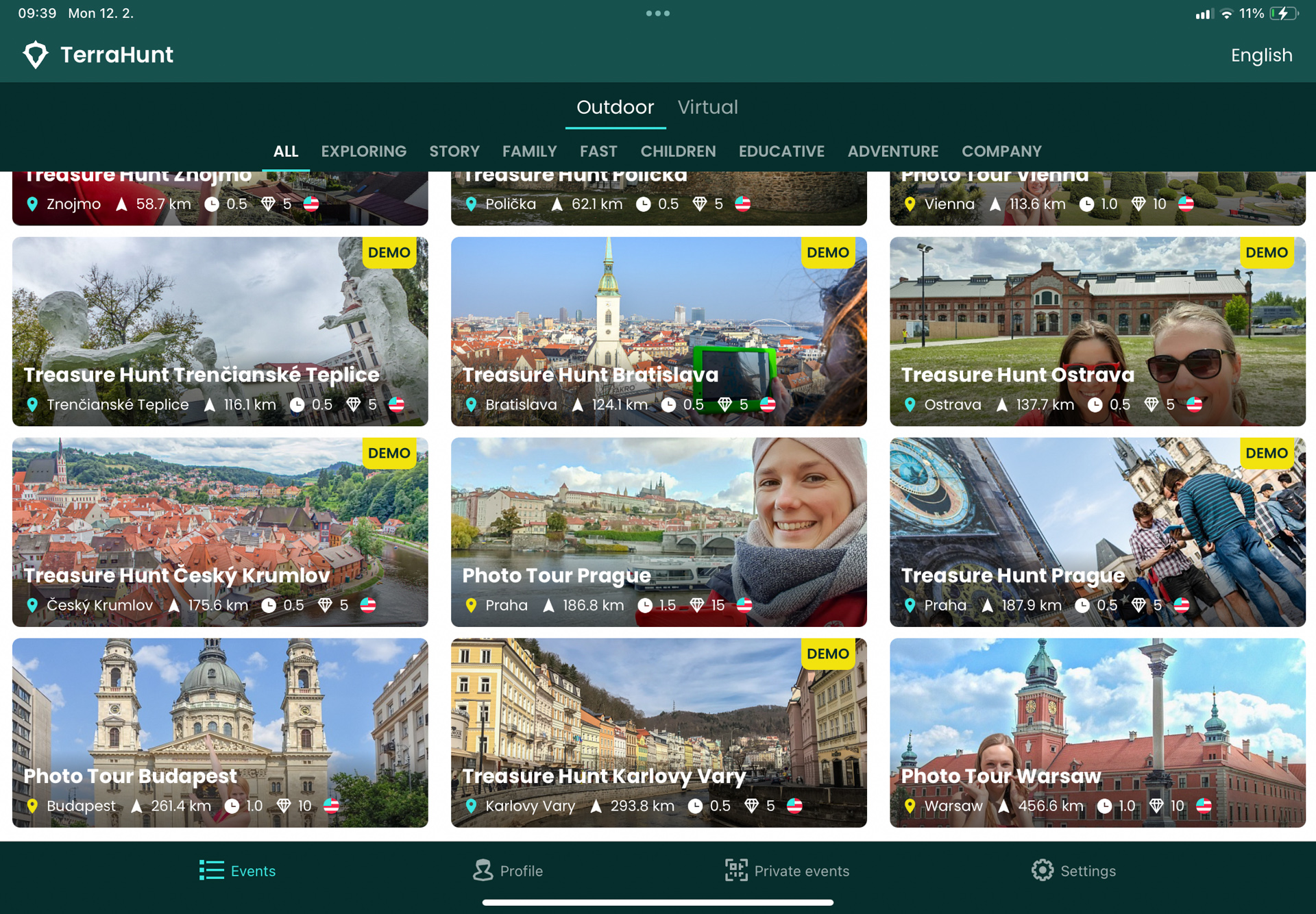
This is the main page of the application.
-
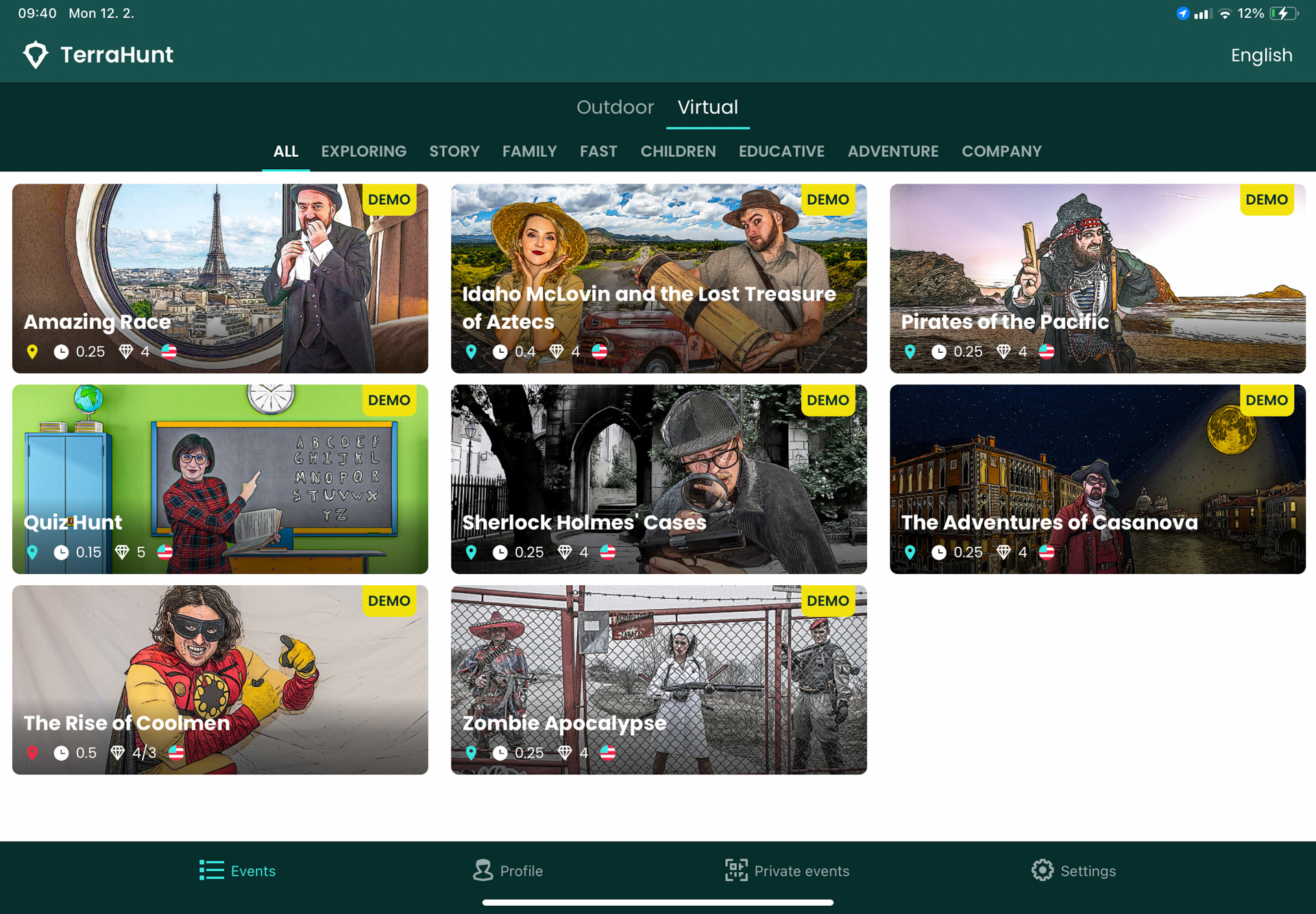
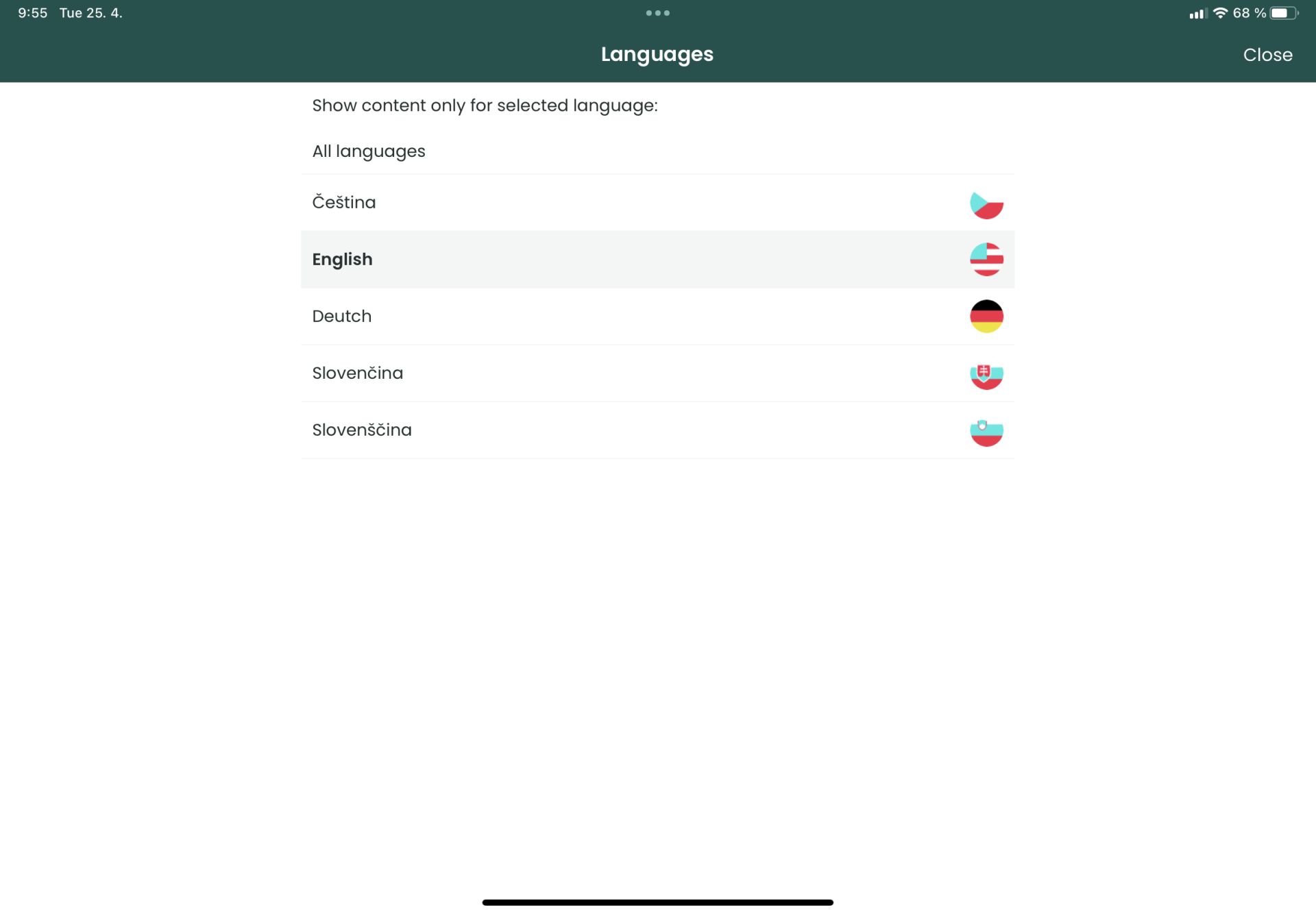
At the top, there is a filter bar where the player can select his/her preferred content language, event environment and categories.
-
The main feature is the tiles of publicly launched events. Outdoor events are sorted in ascending order of the player's physical distance from the event, while virtual events are sorted alphabetically.
Profile
-
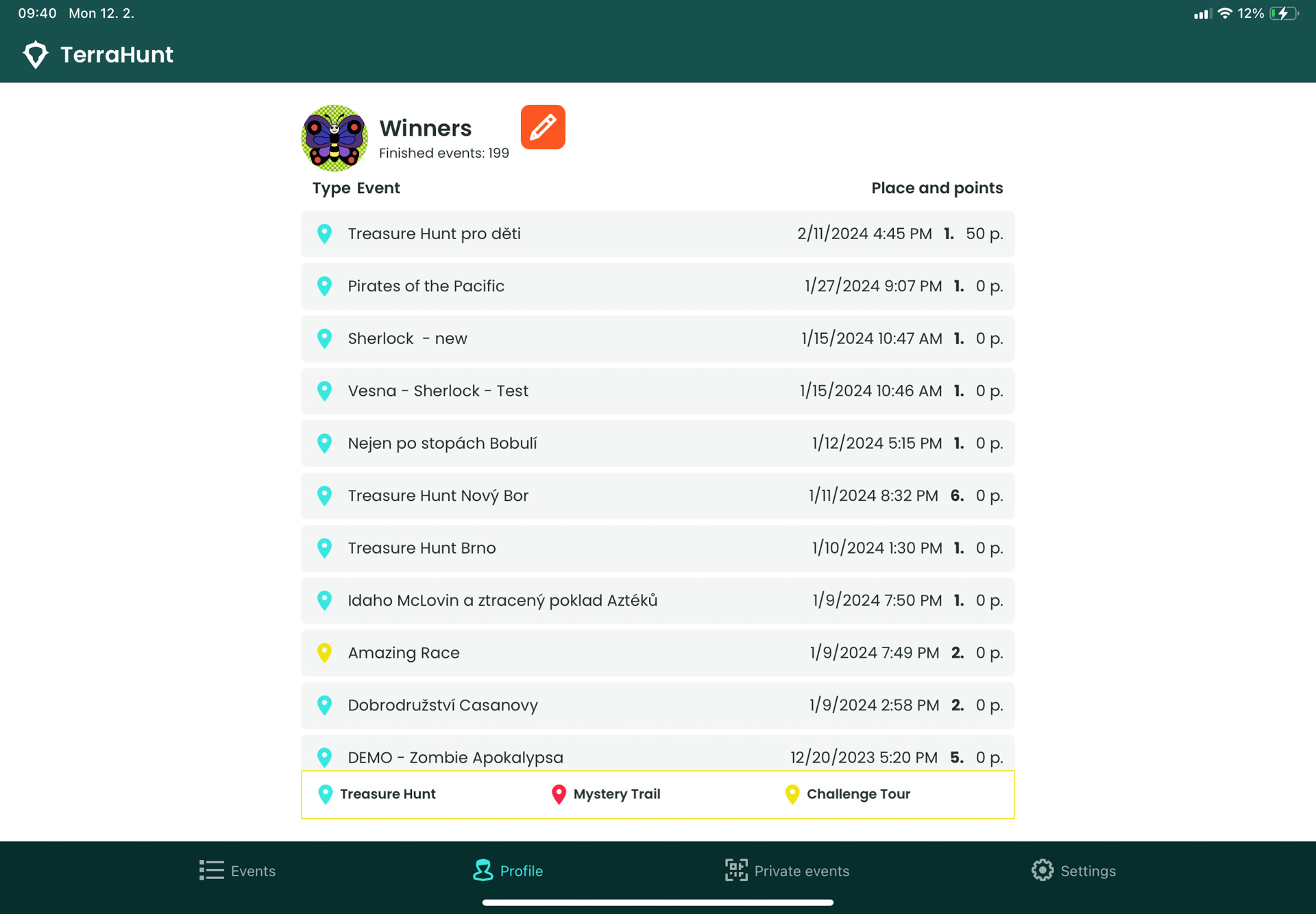
Player or team avatar/photo, both editable.
-
Total number of events played.
-
List of events played (event type, name, date, ranking, points earned). Tapping on this item will open the web browser and redirect the player to the Event Details on the Public Server (You have to log in again with same account details).
Private Events
-
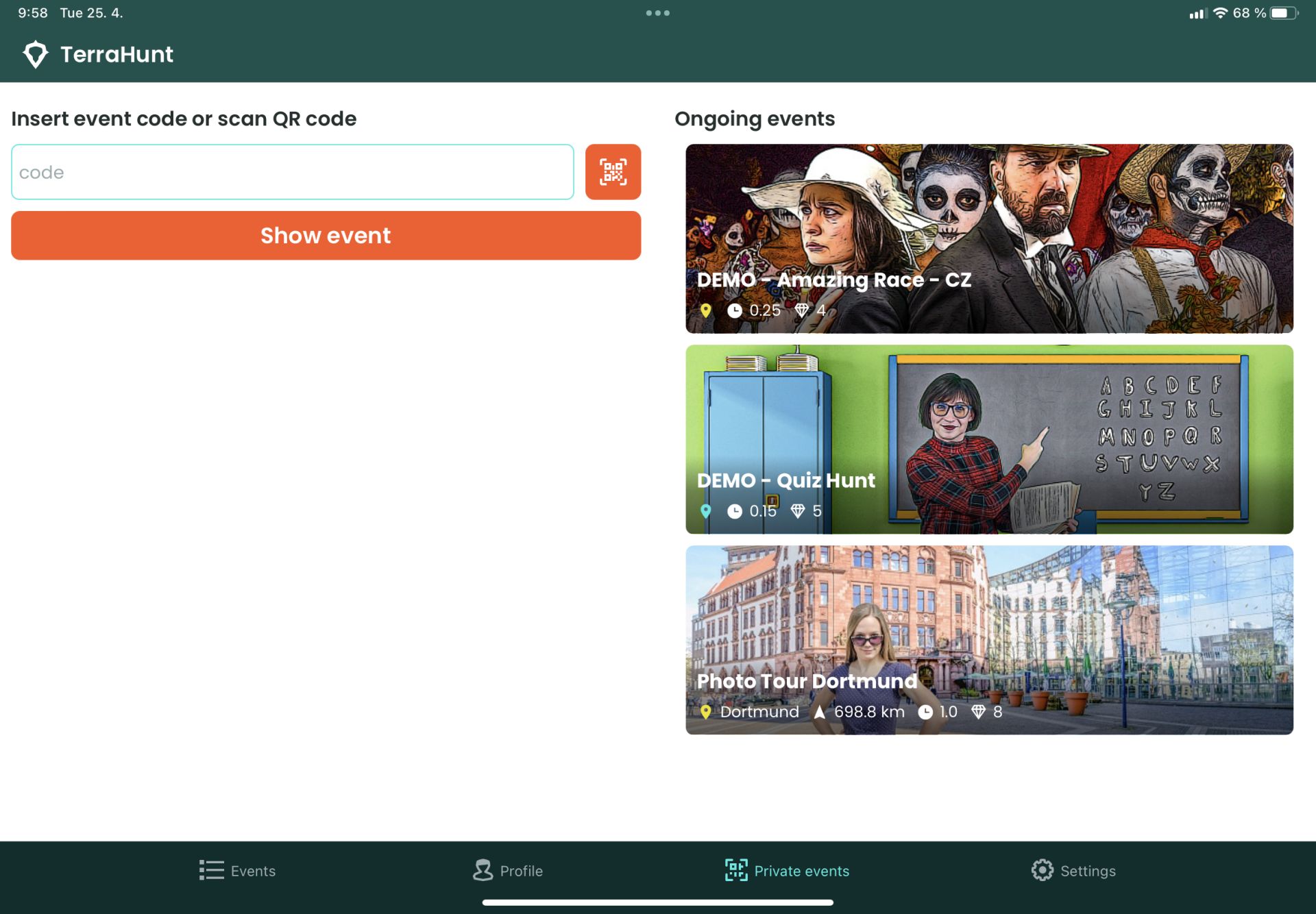
A window to enter the alphanumeric code of the private event and a button to launch the QR code reader of the private event.
-
If the player has any events running, the tiles for those events will also be displayed.
Settings
-
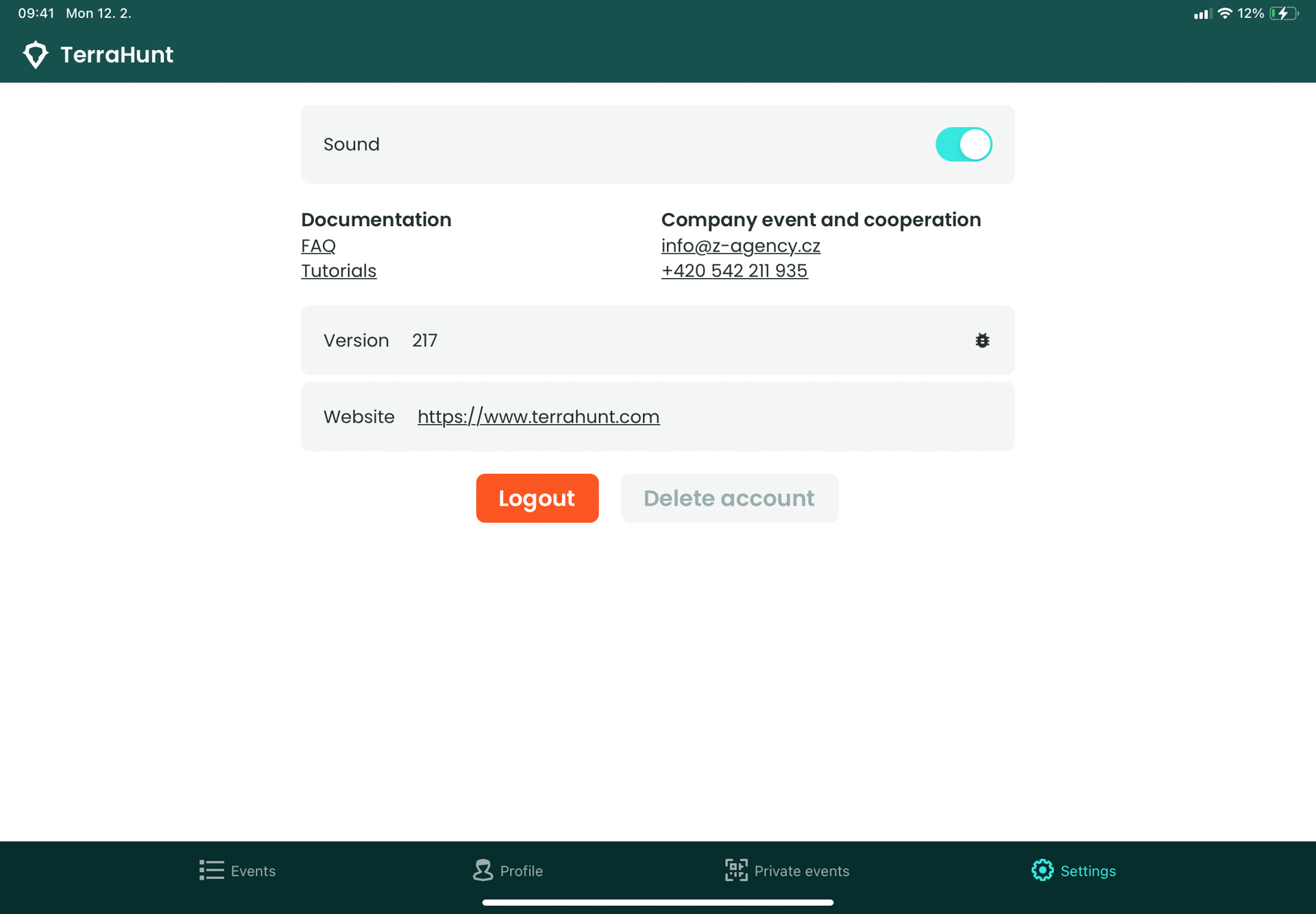
Links to documentation (FAQ on the website).
-
Contacts for corporate event requests and collaboration.
-
A button for logging out.
-
A button to delete the account.
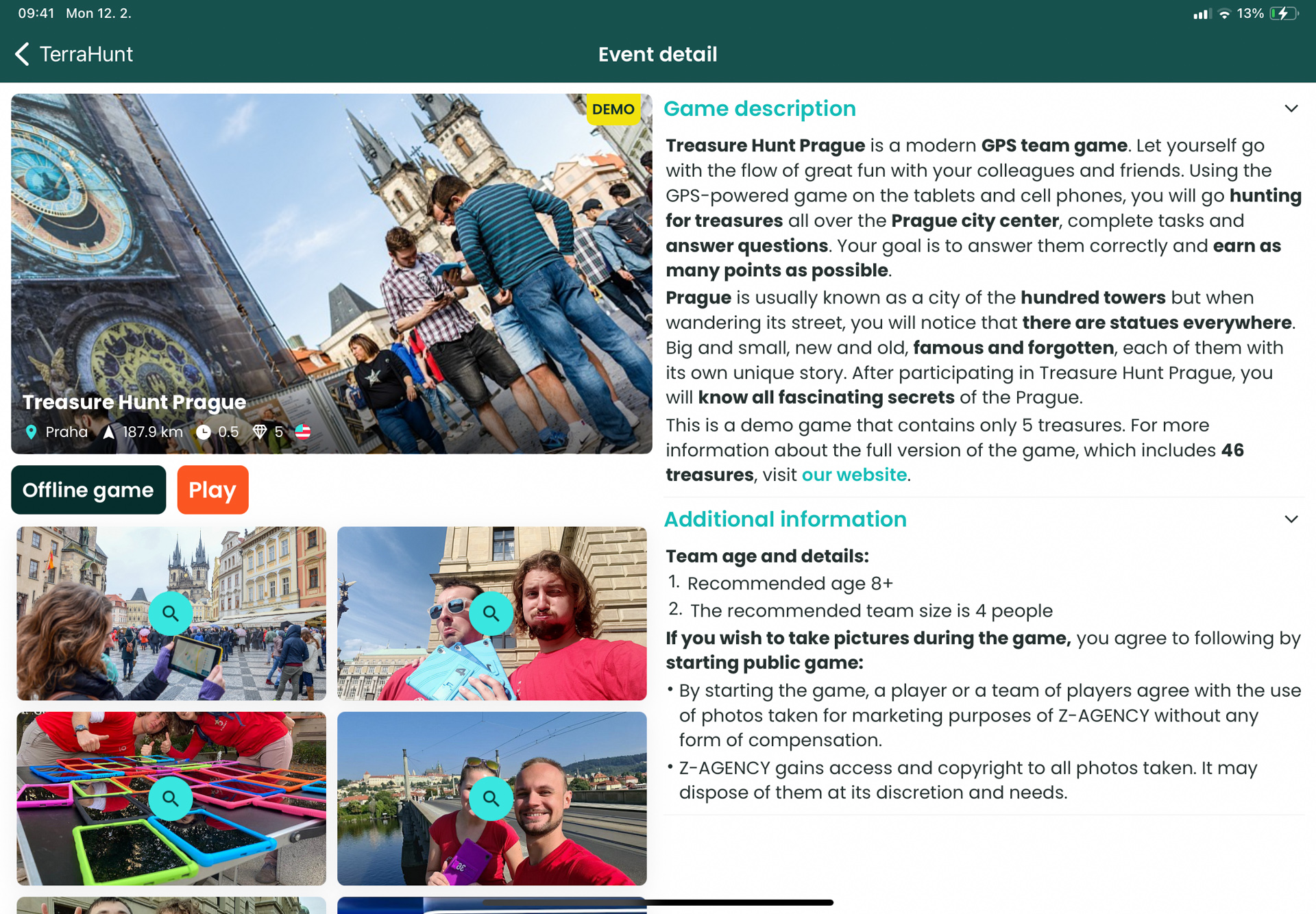
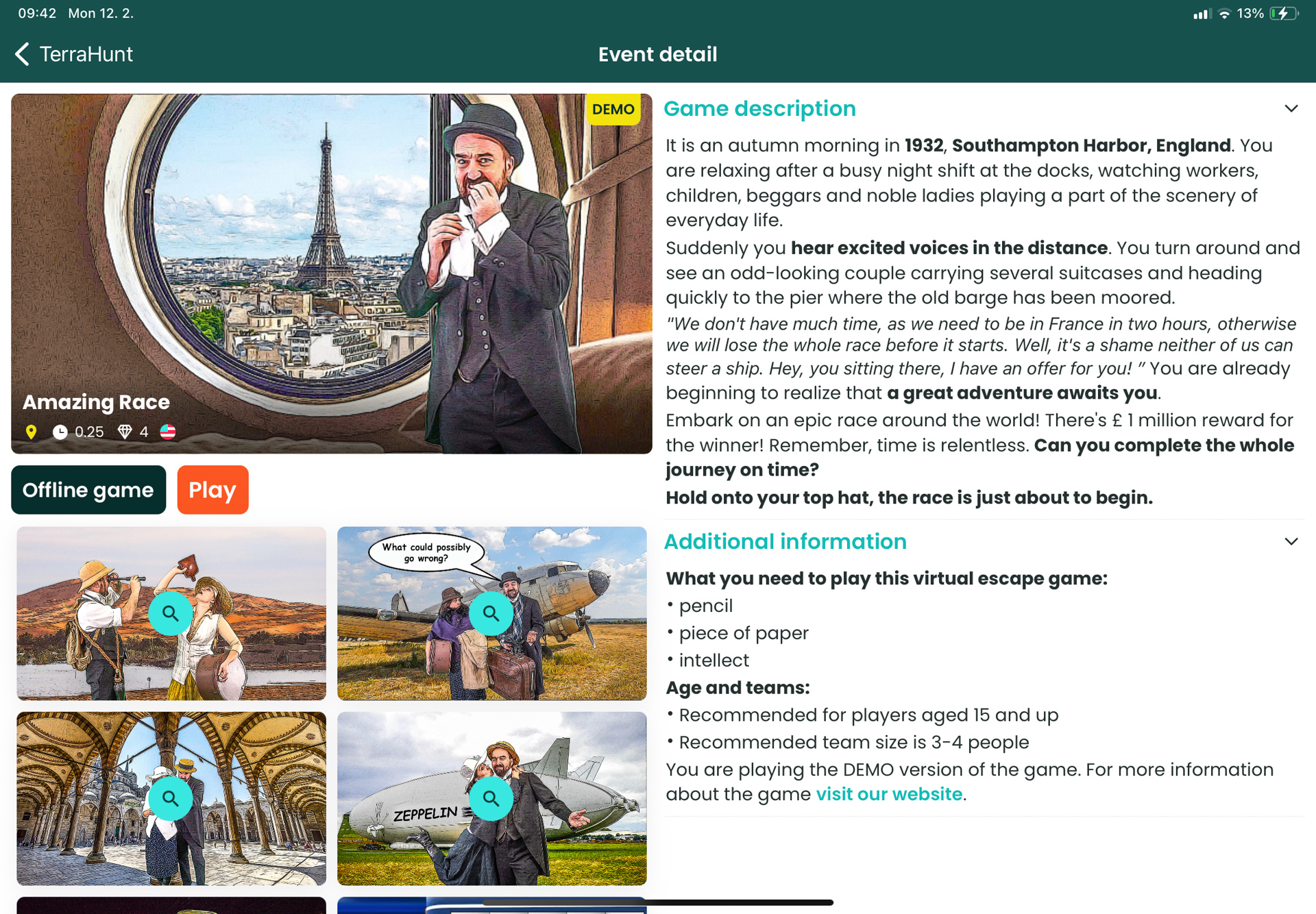
Event Detail
-
Click on the event tile to display the Event Detail. The player can read the event details, view the photo gallery or watch the video.
-
The player can also choose to play online or download the game data for offline play.